
Crawl errors occur when Google’s bots can’t properly access or process parts of your website. These issues can prevent your pages from appearing in search results, which directly impacts your site’s visibility and organic traffic.
In this article, we’ll explore the technical SEO topic of crawl errors. We will explain what crawl errors are, the common types you’ll encounter in Google Search Console, how to identify them, and practical steps to fix them. By the end, you’ll have a clear roadmap for maintaining a crawl-friendly website.
What are Crawl Errors?
At its core, crawling is the process search engines like Google use to discover and index your website’s content. Googlebot, the crawler, systematically follows links and requests pages from your server. When something disrupts this process, it generates a crawl error. These aren’t just minor technical hiccups. They can cause significant problems with your site’s infrastructure or configuration that require immediate attention.
Crawl errors prevent Google from fully understanding your site, which means fewer pages get indexed and ranked. According to Google’s documentation, these errors can stem from various sources including server issues, DNS problems, or misconfigured files like robots.txt. Ignoring them wastes your crawl budget, which is the limited resources Google allocates to scanning your site.
You can learn more about crawling on your site with Google Search Console. While it once featured a dedicated “Crawl Errors” report, today you’ll find these insights distributed across sections like the Index Coverage report and the Crawl Stats report. Fortunately, addressing these errors isn’t as intimidating as it might seem—especially when you approach them systematically.
Common Types of Crawl Errors
Crawl errors manifest in various forms. They can be broadly categorized into site-wide issues and URL-specific problems. Here’s a breakdown of the most frequent ones we encounter.
- Server Errors (5xx)
These occur when your server fails to respond to Googlebot’s request. Status codes like 500 (Internal Server Error), 502 (Bad Gateway), or 503 (Service Unavailable) typically indicate server overload, downtime, or configuration problems. While these can be site-wide when widespread, they may also affect isolated pages.
- DNS Errors
Googlebot cannot resolve your domain’s IP address. This usually happens due to DNS server downtime or misconfiguration, rendering your entire site unreachable to search engines.
- Robots.txt Errors
Your robots.txt file instructs crawlers which parts of your site to access or avoid. Common errors include syntax mistakes, incorrect file locations, or overly restrictive disallow directives that unintentionally block important pages.
- 404 Not Found
The classic broken page error occurs when a URL no longer exists. This often results from deleted content without proper redirects in place or broken internal links pointing to removed pages.
- Soft 404
More subtle than a standard 404, this happens when a page returns a 200 OK status code but displays error-like content, such as “Page not found” messages. Google recognizes these as non-existent pages despite the misleading status code.
- Redirect Errors
These involve redirect loops (endless redirects) or redirect chains (too many sequential redirects). For instance, redirecting from HTTP to HTTPS, then to the WWW version, creates unnecessary steps that can result in timeouts.
- Blocked Resources
While not always classified as full errors, these issues occur when critical assets like images, CSS, or JavaScript files are blocked, which affects how Google renders and understands your pages.
- Unauthorized Requests (401/403)
These status codes indicate pages requiring authentication or pages with forbidden access. If Googlebot cannot access these pages, it cannot index them.
Less common issues include URL errors from invalid characters or excessive lengths, and crawl anomalies like “Crawled – currently not indexed,” where Google visits the page but chooses not to index it due to quality or duplication concerns. Understanding these types is essential. Next, let’s cover how to locate them.
How to Identify Crawl Errors in Google Search Console
Google Search Console is your primary tool for detecting these issues. If you haven’t set it up yet, verify your site ownership. It’s free and straightforward to implement.
Begin with the Index > Pages report (formerly known as Coverage). This displays a graph showing valid, error, warning, and excluded pages. Filter by “Error” to view specifics like server errors or 404s. Click on any error type to see a list of affected URLs, complete with details and trends over time.
For deeper analysis, examine the Settings > Crawl Stats report. Available for domain or root-level properties, it provides comprehensive data on total crawl requests, download sizes, response times, and host status. Look for red or yellow indicators signaling availability problems, such as high failure rates in DNS or server connectivity. This report also breaks down responses by status code (such as the percentage of 5xx errors) and shows which file types are being crawled.
Don’t underestimate the URL Inspection Tool. Enter any problematic URL, and Google Search Console will reveal its crawl status, indexing information, and any issues like blocks from robots.txt or noindex tags. The “Test Live URL” feature allows you to simulate a current crawl and see exactly what Googlebot encounters.
For large websites, consider comparing Google Search Console data with your server logs to identify discrepancies.
When prioritizing fixes, tackle site-wide issues first, followed by problems affecting high-traffic URLs. If you notice a sudden spike in errors, investigate whether it correlates with recent site changes like a redesign or hosting migration.
Step-by-Step Guide to Fixing Crawl Errors
Resolving crawl errors requires a combination of technical adjustments and ongoing monitoring. Let’s walk through solutions for the main error types with actionable steps.
1. Server Errors (5xx)
- Diagnose: Check your hosting dashboard for uptime logs.
- Fix: Optimize server resources by compressing images, enabling caching, or upgrading your hosting plan if overload is chronic. For temporary issues, return a 503 status with a Retry-After header to politely request Googlebot to return later.
- Validate: After implementing fixes, use Google Search Console’s “Validate Fix” button in the Pages report. Google will re-crawl the affected URLs and confirm resolution, though this can take several days to weeks.
2. DNS Errors
- Diagnose: Test your domain using tools like Google’s DNS checker to identify configuration issues.
- Fix: Contact your DNS provider to correct any misconfigurations. Ensure DNS records point correctly and schedule updates during low-traffic periods to minimize downtime.
- Prevent: Choose reliable DNS hosting providers with built-in redundancy and failover capabilities.
3. Robots.txt Errors
- Diagnose: Review your robots.txt file at yourdomain.com/robots.txt. Use Google Search Console’s robots.txt Tester located under Settings to identify syntax errors.
- Fix: Edit the file to remove unnecessary disallow directives. Pay attention to syntax: use “User-agent: Googlebot” followed by specific paths. If blocking was intentional but causing indexing problems, reconsider your approach.
- Important Tip: Never block CSS or JavaScript files, as Google needs these resources to render pages accurately and understand your content.
4. 404 Not Found
- Diagnose: From the Pages report, export the complete list of 404 URLs for analysis.
- Fix: Implement 301 redirects to similar, relevant content if pages were moved or renamed. For legitimately deleted low-value pages, allow them to return natural 404s, but remove them from your sitemap. Update all internal links to prevent future broken link issues.
- Efficiency Tip: Use Excel or Google Sheets to batch-process redirects through .htaccess files or plugins like Yoast.
5. Soft 404
- Diagnose: Identify pages that load but contain minimal content or display error messages despite returning a 200 status code.
- Fix: Configure your server to return a proper 404 header for these pages. Either add substantial, meaningful content to the page or redirect users to a relevant alternative.
6. Redirect Errors
- Diagnose: Review the Crawl Stats report for redirect chains visible in the response codes section.
- Fix: Consolidate multiple redirects into single 301 redirects pointing directly to the final destination. Prevent loops by carefully mapping old URLs to their final locations. Test your redirects using tools like HTTPStatus.io or Redirect Checker.
7. Other Issues
For blocked resources, verify that file paths are accessible to Googlebot. For pages with unauthorized access, either make them accessible to crawlers or remove links and sitemap entries pointing to them. Always resubmit your sitemap after implementing major fixes using Google Search Console ‘s Sitemaps section.
Monitor your progress regularly in Google Search Console. Trends should show a steady decline in errors over time. If issues persist despite your fixes, they may indicate deeper performance problems like slow page load times. Address these through optimization techniques such as file compression, lazy loading, or implementing a Content Delivery Network (CDN).
Best Practices to Prevent Future Crawl Errors
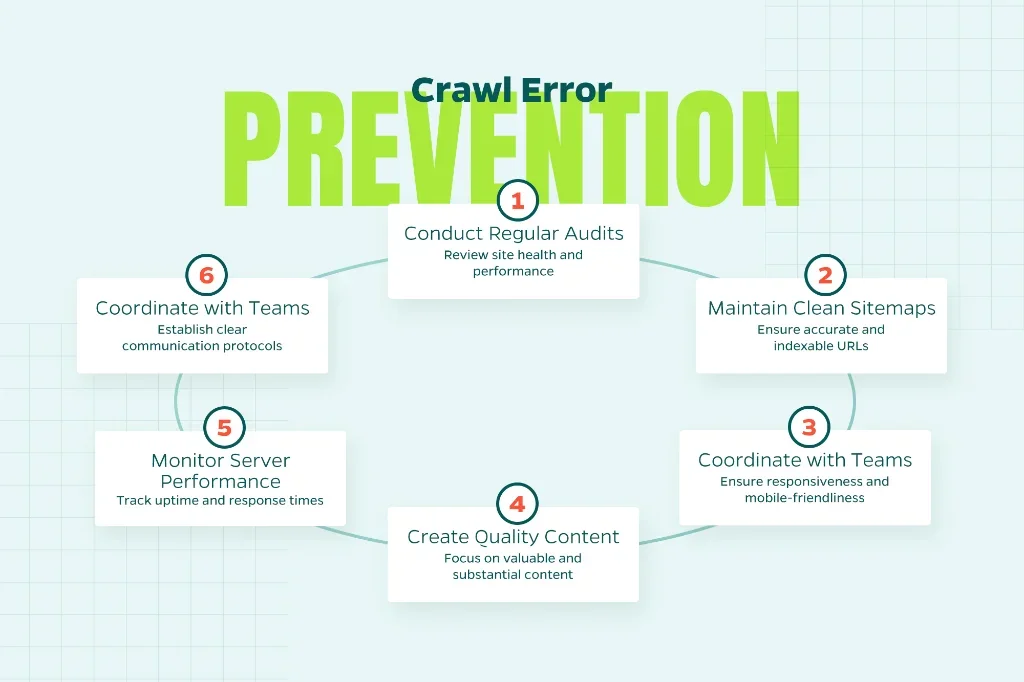
Prevention is always more efficient than remediation in SEO. Here are essential habits to adopt:
- Regular Audits: Conduct monthly reviews in Google Search Console and run comprehensive site crawls using tools like Screaming Frog or Sitebulb.
- Clean Sitemaps: Include only indexable, canonical URLs in your sitemap. Update it promptly after making site changes.
- Mobile Optimization: Ensure your site is fully responsive and mobile-friendly, as Google now uses mobile-first indexing by default.
- Quality Content: Avoid thin pages that trigger “crawled but not indexed” statuses. Focus on creating substantial, valuable content for users.
- Server Maintenance: Continuously monitor uptime and response times. Set up alerts for downtime or performance degradation.
- Team Coordination: If you work with developers or IT teams, establish clear communication protocols to prevent accidental blocks during site updates.
By maintaining these proactive practices, you’ll minimize errors and maximize your site’s crawl efficiency, ensuring Google can access and index your most important content.
Taking the Next Step
Crawl errors are fixable obstacles in your SEO strategy. With Google Search Console as your diagnostic tool, identifying and resolving these issues becomes entirely manageable. However, if you’re feeling overwhelmed or need expert assistance to audit and optimize your site, Straight North is here to help. Our experienced team can guide you through these technical challenges and enhance your search performance. Contact us today to learn more.